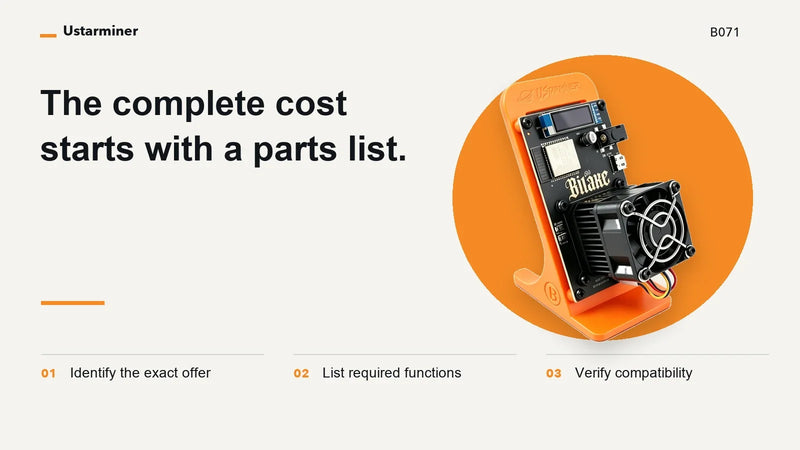
Ustarminer 601 1.2T Smart Edition Setup Guide
Step-by-step instructions for app pairing, WiFi configuration, mining pool setup, BTC wallet configuration, and remote control.
The Ustarminer 601 1.2T Smart Edition is a compact home mining device designed for users who want a simpler setup process without manual network configuration.
This guide covers the complete setup process, including power connection, Ustarminer App registration, Bluetooth pairing, WiFi configuration, mining pool settings, BTC wallet setup, and remote management features.
After pairing the device with the Ustarminer App, users can monitor hashrate, check device status, manage multiple miners, and adjust configuration settings remotely.
Before setting up the device, check the packaging and confirm that all standard accessories are included. Keep the activation code card in a safe place, as it is required during device binding.

Check that the package includes:
- One Ustarminer 601 main unit
- Product manual
- Regional power adapter and power cord
- Activation code card with QR code or serial information for device pairing
The hardware setup is straightforward. Before connecting the miner to power, make sure the adapter and power cable are properly attached.
- Attach the regional plug adapter to the main power adapter.
- Connect the power cord to the power port on the Ustarminer 601 main unit.
- Plug the adapter into a standard household power outlet.

After power is connected, the built-in display should turn on and the cooling fan should begin running. This means the device has started booting.
The Ustarminer App is used for device binding, WiFi setup, mining pool configuration, BTC wallet setup, status monitoring, and remote management.

- iOS: Open the Apple App Store, search for Ustarminer, and install the app.
- Android: Open Google Play, search for Ustarminer, and install the app.
When opening the app for the first time, you may see Guest Mode. For full device binding and remote control features, register and log in with an account.

- Tap Login Now at the bottom of the app screen.
- Select the Email registration option.
- Enter your email address and request a verification code.
- Enter the verification code, set your password, and complete registration.
- Log in with the registered email account.
After login, the Personal Center will display your account information. This section also provides access to app functions, language settings, and device warranty checks through the SN number.
The next step is to bind the physical Ustarminer 601 to your Ustarminer account. Bluetooth is used for the initial discovery and pairing process.

- Turn on Bluetooth on your smartphone.
- Open the Ustarminer App and tap the Discover tab.
- Wait for the app to find the 601 Smart Edition.
- Tap Bind Device.
- Scan the QR code on the activation code card, or enter the authorization code manually if needed.
- Enter the WiFi SSID and password that the miner should use.
- Tap Bind Device and wait for the miner to restart.
Open the Devices tab in the app to view your bound Ustarminer 601. If you add more devices later, they can be managed from the same account.
Tap the device to enter the control panel. The main functions include remote control, device configuration, mining pool settings, BTC wallet setup, WiFi settings, and status monitoring.

1. Remote Control and Scheduling
- Power control: Turn the device on or place it into low-power mode through the app.
- Scheduled operation: Set mining time periods based on your preferred electricity usage schedule.
2. Device Configuration
The configuration section is used to set or update the main mining parameters.
- LED locator: Use the indicator function to identify a specific device in a multi-miner setup.
- Mining pool settings: Enter the mining pool address provided by your selected pool service.
- BTC wallet address: Add your Bitcoin wallet address for receiving mining rewards according to pool rules.
- WiFi settings: Update the WiFi name and password if your network changes.

3. Status Monitoring and Hashrate Data
- Real-time status: Check uptime, chip temperature, and active hashrate.
- Hashrate charts: View performance trends across short and longer time windows.
- Error prompts: If an error warning appears, tap the indicator to view the related error information.
The control page includes a key icon related to account and device security. This function helps protect device access when changing phones or logging in from a new device.

If you switch to a new smartphone, you may need to enter the authorization code from the original device or account flow. Keep your activation card and account information secure to avoid unauthorized access.
The Ustarminer App may include both basic and premium functions. Available features can vary by app version, region, and account status.
Before purchasing or renewing any paid feature, check the latest app page or official Ustarminer information for current feature availability and pricing.
The Ustarminer 601 1.2T Smart Edition is designed for home and small-scale use in different regions. The app supports multiple languages, and the package may include regional power adapters depending on the sales channel.
Before operation, check your local voltage, plug type, electricity cost, network condition, and local rules related to cryptocurrency mining.
How do I connect Ustarminer 601 to WiFi?
Open the Ustarminer App, bind the device through Bluetooth, then enter your WiFi SSID and password during the setup process.
Can Ustarminer 601 be controlled remotely?
Yes. After the device is bound to your Ustarminer account, you can monitor and manage the miner remotely through the app.
Where do I enter my BTC wallet address?
The BTC wallet address can be added inside the mining configuration section of the Ustarminer App.
Does Ustarminer 601 support multiple devices?
Yes. Multiple Ustarminer devices can be managed under the same Ustarminer account.
What should I check if the miner is offline?
Check the power connection, WiFi name and password, router status, and whether the device is placed within a stable wireless signal range.
Summary: What You Can Do After Setup
- Check real-time hashrate, chip temperature, and device running status.
- Configure mining pool information and BTC wallet address in the Ustarminer App.
- Use remote control functions after the miner is bound to your account.
- Manage multiple Ustarminer devices from one app account.
- Use status indicators and error prompts for basic troubleshooting.
Your Ustarminer 601 setup is now complete. Keep the miner in a well-ventilated environment and regularly check device status, temperature, and network connectivity through the Ustarminer App.
Video Tutorials
Watch the setup walkthrough in your preferred language: