By Ustarminer Engineering Team
A useful Bitaxe measurement pairs electricity used at the AC outlet with mining work observed over the same period. Record settings and cooling conditions alongside the readings to compare configurations, estimate electricity costs or investigate unusual behavior.
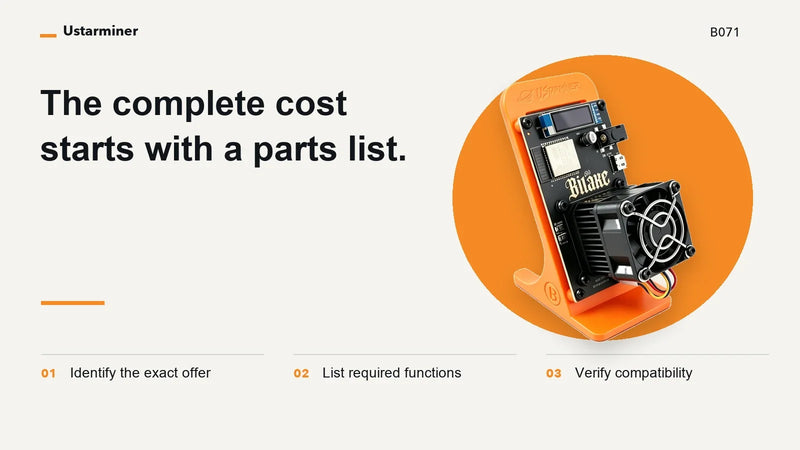
This guide uses Ustarminer's current 12V Gamma 601 and 602. You will need a suitable plug-in energy meter, dashboard and mining-service access, and somewhere to record readings and timestamps.
Contents

What should you measure?
Keep three questions separate:
- Electricity use: how many kilowatt-hours does the complete setup consume?
- Hashrate: how much hashing work does the miner report, and what does the mining service observe?
- Efficiency: how much energy is used per unit of hashing work over a comparable interval?
For electricity use, measure at the outlet with the adapter, miner and its usual cooling hardware connected.
1. Record the configuration before starting
Record the model, board revision, input voltage, adapter, firmware version, frequency, core voltage and fan-control setting. Start with the factory configuration as a reference before comparing changes.
| Configuration | Engineering reference hashrate | AC power at 25°C |
|---|---|---|
| Gamma 601 at 525MHz / 1.15V core | 1.2 TH/s | 20–25W |
| Gamma 602, mode 1 | 1.8 TH/s | About 38W |
| Gamma 602, mode 2 | 2.0 TH/s | About 40W |
The factory settings are 525MHz/1150mV for the 601 and 900MHz/1150mV for the 602. The two 602 performance modes above do not supply a frequency-and-voltage recipe; keep the mode's hashrate and power together when quoting it.
Use the original matched adapter and model-matched firmware from the StarMiner repository or product support route. Change one variable at a time: changing the fan profile and firmware together makes their individual effects difficult to separate.
2. How to set up the AC meter
Choose a meter rated for your supply voltage and load. Check its stated accuracy and display resolution, especially at the miner's relatively low power draw. A display that changes only in whole watts has limited ability to distinguish small improvements.
Plug the miner's original adapter into the meter and the meter into the AC outlet. Include the same equipment in every run, and state whether an external cooling accessory is counted. Leave the household router outside the measurement unless your objective includes it.
Record watts and cumulative energy in kWh. Watts show power at that moment; cumulative energy gives average power over time. Take a starting energy reading rather than assuming the meter is at zero.
Keep the measurement external. There is no need to open an adapter or probe live mains circuitry.
3. Let the miner settle, then start a timed record
Let the miner boot, connect and warm up before recording steady operation. Watch the temperature and fan until they settle; the time needed depends on the room, cooler and fan profile.
Measure room air near the cooling intake, away from the exhaust. On these Gamma configurations, ASIC Temp measures inside the ASIC; Power Temp/vrTemp refers to the power-conversion region. The default 60°C fan-control target is a chip-temperature target, rather than a room-temperature limit.
Record the start time, meter reading and uptime, then repeat at the end. Log changes in room conditions, fan behavior, connection or uptime. Retain restart events even if you later analyze a separate stable interval.
How to calculate average power from kWh
Suppose an illustrative 24-hour observation uses 0.48kWh:
Average watts = energy in kWh × 1,000 ÷ elapsed hours
That gives 0.48 × 1,000 ÷ 24 = 20W average AC power. For your calculation, use the difference between the starting and ending energy readings and the actual elapsed time.
4. Why can local and pool hashrate differ?
The local dashboard estimates hashrate over a short window. A mining pool or solo-mining service commonly estimates it from accepted shares over a longer window. A share is a result that meets the service's assigned difficulty and is submitted for validation.
Because share arrivals vary, a short pool window can look uneven even while the miner is working normally. Higher share difficulty also means fewer qualifying submissions for a given hashrate, making a brief observation less informative.
| Reading | What to keep in your record |
|---|---|
| Local hashrate | Reported value and timestamp; averaging window if documented |
| Pool hashrate | Value, timestamp and the service's stated averaging window |
| Accepted shares | Count or change during the observation, plus assigned difficulty if available |
| Rejected shares | Count and any accompanying reason |
| Uptime and connection events | Restarts, interruptions and time spent disconnected |
After a restart or settings change, a trailing pool average may still include work from before your chosen interval. Wait for the documented window to cover the new configuration, or label the mismatch in your record. Use the pool's own window description rather than assuming every service uses the same duration.
A brief gap in shares calls for context: check assigned difficulty, fresh jobs, connection status and uptime together. For more background on share targets, see the Bitcoin Developer Guide.
5. How to calculate AC efficiency in J/TH
When power and hashrate describe a comparable interval, divide watts by TH/s:
AC efficiency in J/TH = average AC watts ÷ average hashrate in TH/s
For a worked example, suppose a complete setup averages 24W and the selected hashrate source reports an average of 1.5 TH/s over an aligned interval. The calculation is 24 ÷ 1.5 = 16 J/TH. Watts are joules per second; dividing by terahashes per second leaves joules per terahash.
Label the result AC-based and identify the hashrate source. A board power estimate excludes some of the equipment counted by the outlet meter, including adapter losses. Comparing that estimate with another miner's outlet measurement would mix two different boundaries.
For reference, the engineering figures in the first table calculate to approximately 16.7–20.8 J/TH for the 601, 21.1 J/TH for 602 mode 1 and 20.0 J/TH for mode 2. Keep measured results separate from these calculations based on reference specifications.
6. Decide what the result tells you
A lower watt reading is useful only when you also know what happened to the work. If power fell because the miner lost its connection or restarted, that is a different result from completing comparable work with less energy.
Repeat a comparison under similar room and operating conditions. Check any apparent improvement against meter accuracy, display resolution and variation between runs. If a small difference falls within those limits, report the readings without declaring a winner. Extra decimal places from a calculator do not add measurement precision.
A complete record identifies the hardware, conditions, observation period and interruptions. It also gives support a useful starting point for investigating an abnormal result.
Frequently asked questions
Does a 36W adapter mean my miner consumes 36W?
No. That is its rated output capacity. Measure AC energy at the outlet to find the complete setup's electricity use, including conversion losses.
How long should I measure?
Choose an interval that suits the question and covers the mining service's documented averaging window. A longer energy observation can also help when the meter's kWh display has limited resolution. Record the duration and interruptions so the result can be interpreted.
Why is the pool's hashrate lower than the local display?
First compare the time windows, then check accepted shares, rejects, assigned difficulty and uptime. Short-window variation and recent restarts can explain a temporary difference; a persistent gap with a good record deserves further investigation.
Can I use best share to compare performance?
Best share records the highest share difficulty reached in a session or historical record. Use sustained hashrate, accepted work and elapsed time for a performance comparison; a single best-share value measures a different thing.
Reference webpages
- GitHub — Ustarminer/StarMiner — Project page (github.com)
- Bitcoin Developer Guide — Mining — Guide (developer.bitcoin.org)
- Ustarminer — Bitaxe Gamma 601 — Product page (ustarminer.com)
- Ustarminer — Bitaxe Gamma 602 — Product page (ustarminer.com)
- Ustarminer — Bitaxe 601 Smart Edition — Guide (ustarminer.com)